Culling Photos
Categories:
How to Cull Your Photos
RawCull employs a sophisticated cache system comprising a three-tiered architecture: Memory Cache → Disk Cache → Source (RAW file).
This system maintains a predetermined number of thumbnails in memory, ensuring rapid access based on the allocated memory settings. All newly created thumbnails are stored in the disk cache, where the cache system autonomously removes outdated images and retrieves fresh ones from the disk cache.
Users can monitor cache hits, memory usage, disk cache, and evictions through the Settings menu. The cache data is automatically refreshed during the culling process.
A photo culling application is specialized software designed to assist photographers in efficiently reviewing, organizing, and selecting the most suitable images from a photo shoot.
RawCull is not a tool for image editing; it is solely intended for selecting and copying selected images for editing by dedicated software such as DxO PL, Lightroom, and others.
The typical workflow is:
- Copy from Camera: Images are copied from your camera to a temporary catalog on your Mac
- Review & Mark: You review each image and mark the keepers you want to keep
- Rate: Assign ratings to your keepers to prioritize your best images
- Copy Keepers: Only the marked and rated photos are copied to a final catalog for editing
- Edit: Use a dedicated photo editing application to edit the selected images
Step 1: Select Your Temporary Catalog
By default, the Sidebar is concealed. To access NEW catalogs, you must toggle the view sidebar by selecting the menu option. The Sidebar offers only one option: selecting new catalogs for scanning.
After copying images from your camera to a temporary catalog on your Mac, select that folder in RawCull. The application scans all images and generates previews for quick review. This process reads your photo metadata and creates a visual index of all images in the selected directory.
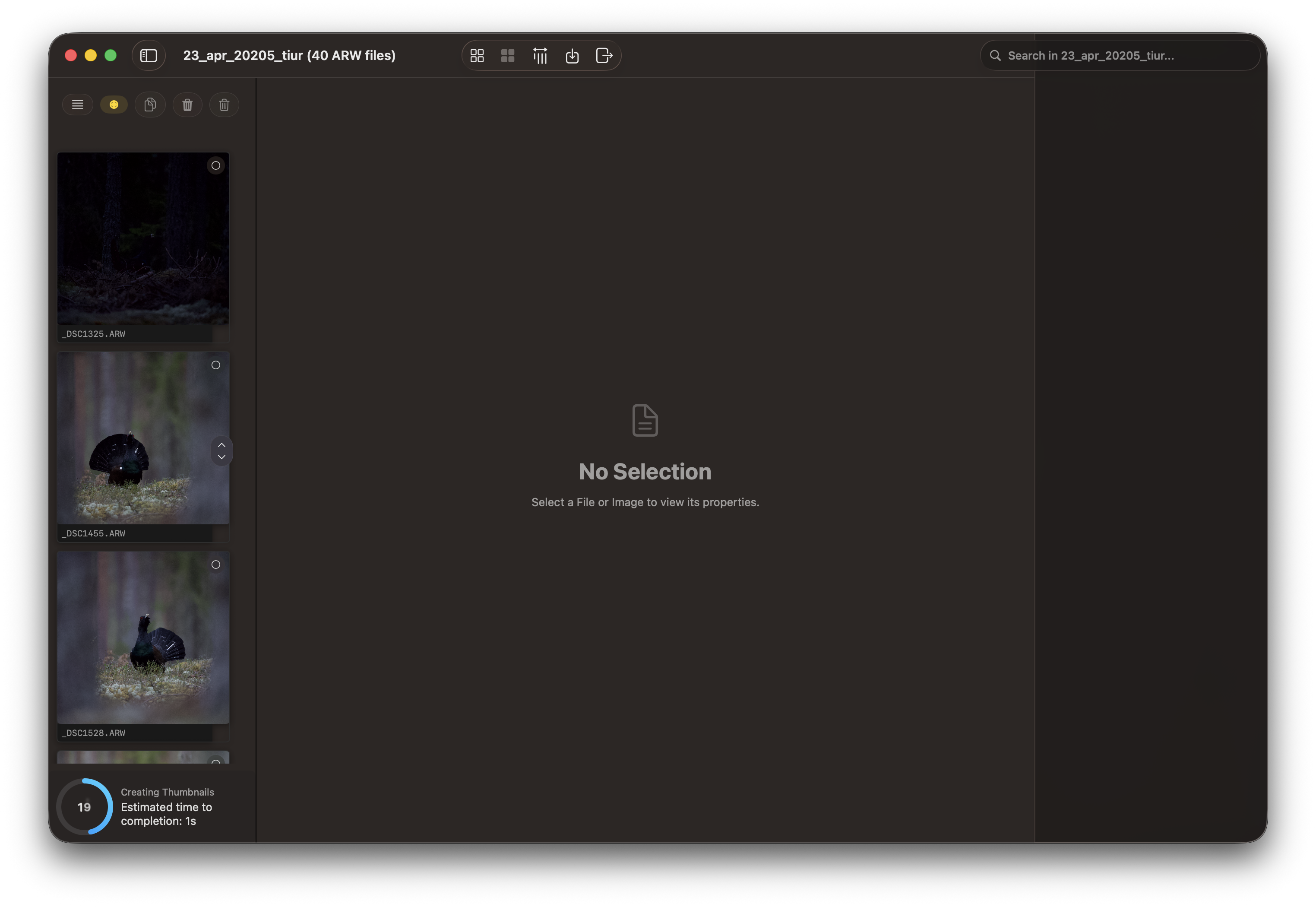
During scanning, you can monitor progress as the application indexes your images. Depending on the size of your library, this may take a few moments.
Step 2: Post-Scan Display
Once scanning completes, RawCull displays your full photo library with a thumbnail grid and preview controls ready for culling.
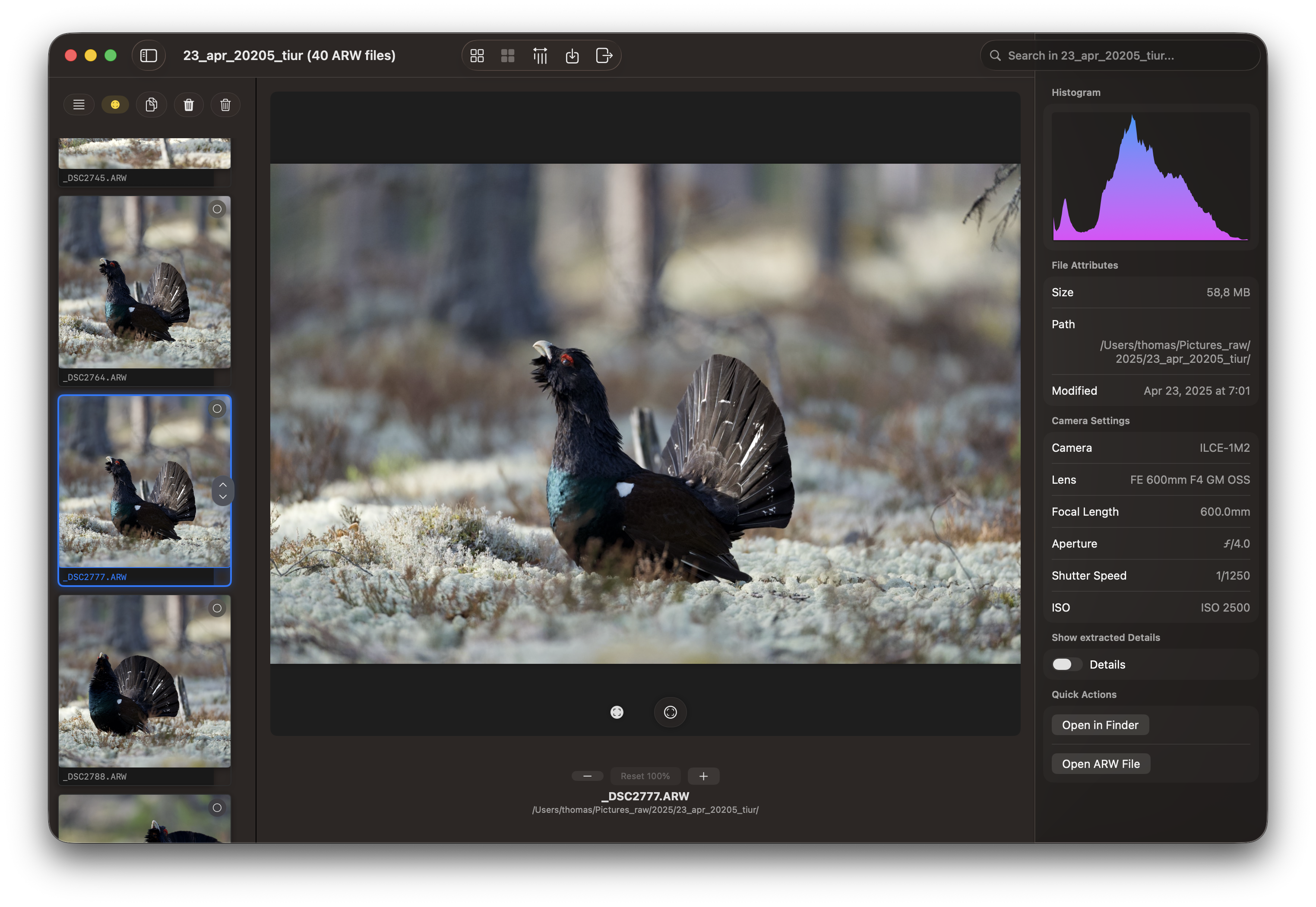
At this point, you can:
- Navigate through images using arrow keys or click navigation
- View the current image in the main preview area
- Mark images with your culling decisions
- Use filters to organize your view
The inspector can be hidden by toggling the hide/show icon on the toolbar.
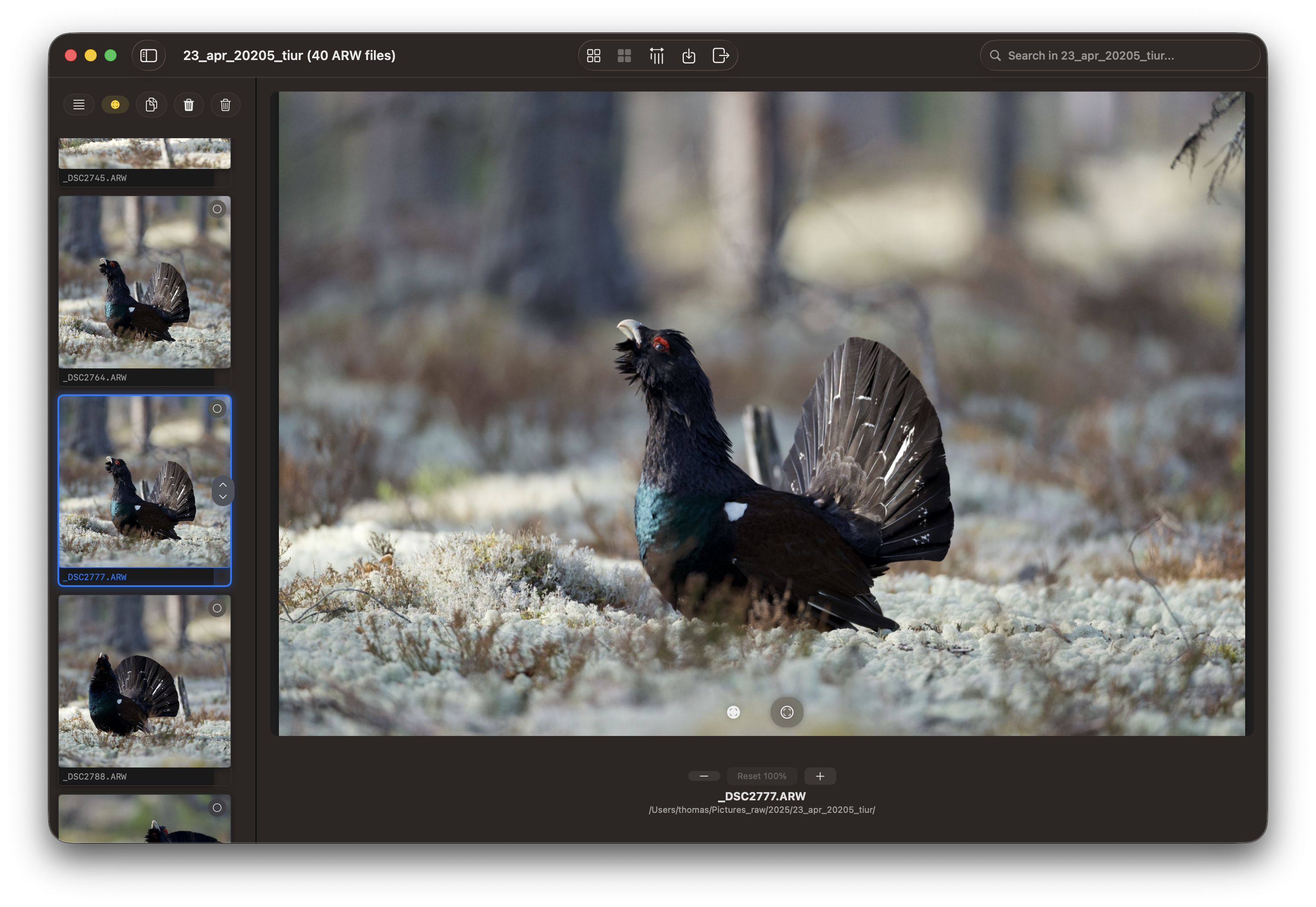
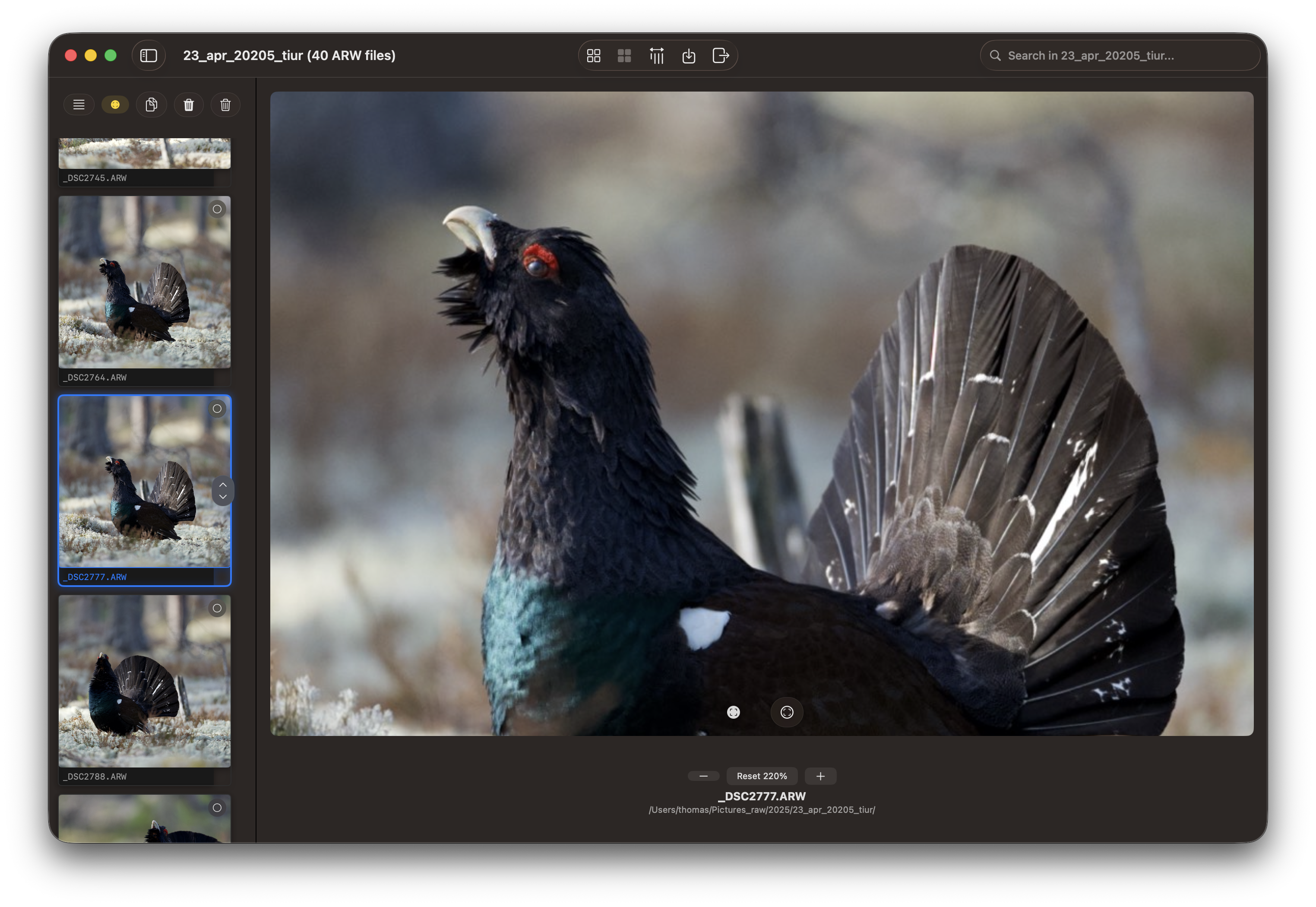
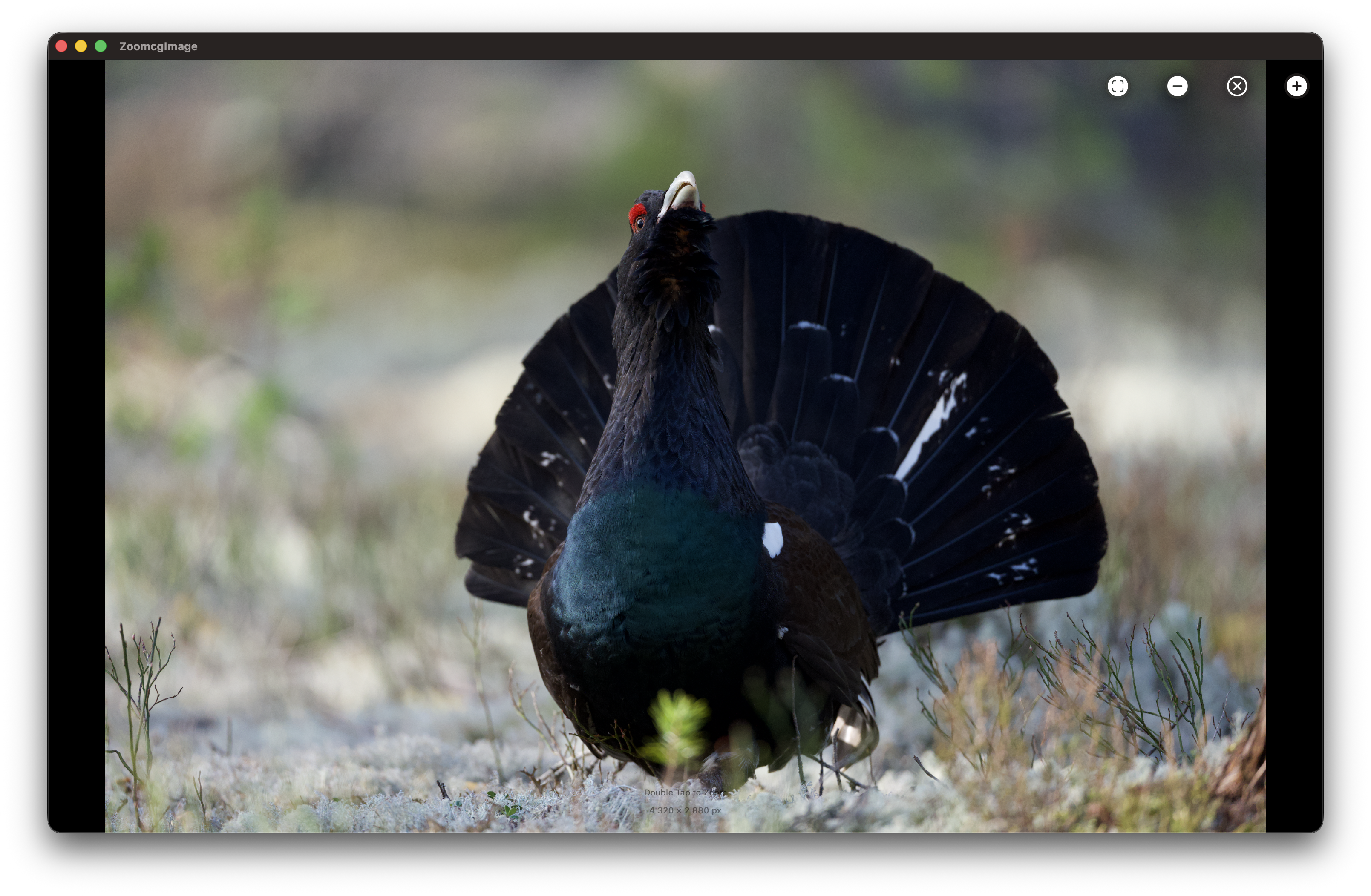
You may also zoom in on details by utilizing the + and - buttons located below the image. The image is either a 1024 px or 2048 px thumbnail, and for optimal results, a double-click on the image will extract the JPG file from the ARW format. This is particularly useful for viewing and focusing on specific areas. See Zoom and Focus Peek below.
The Grid View presents all created thumbnails. You may also select keepers from the Grid View.
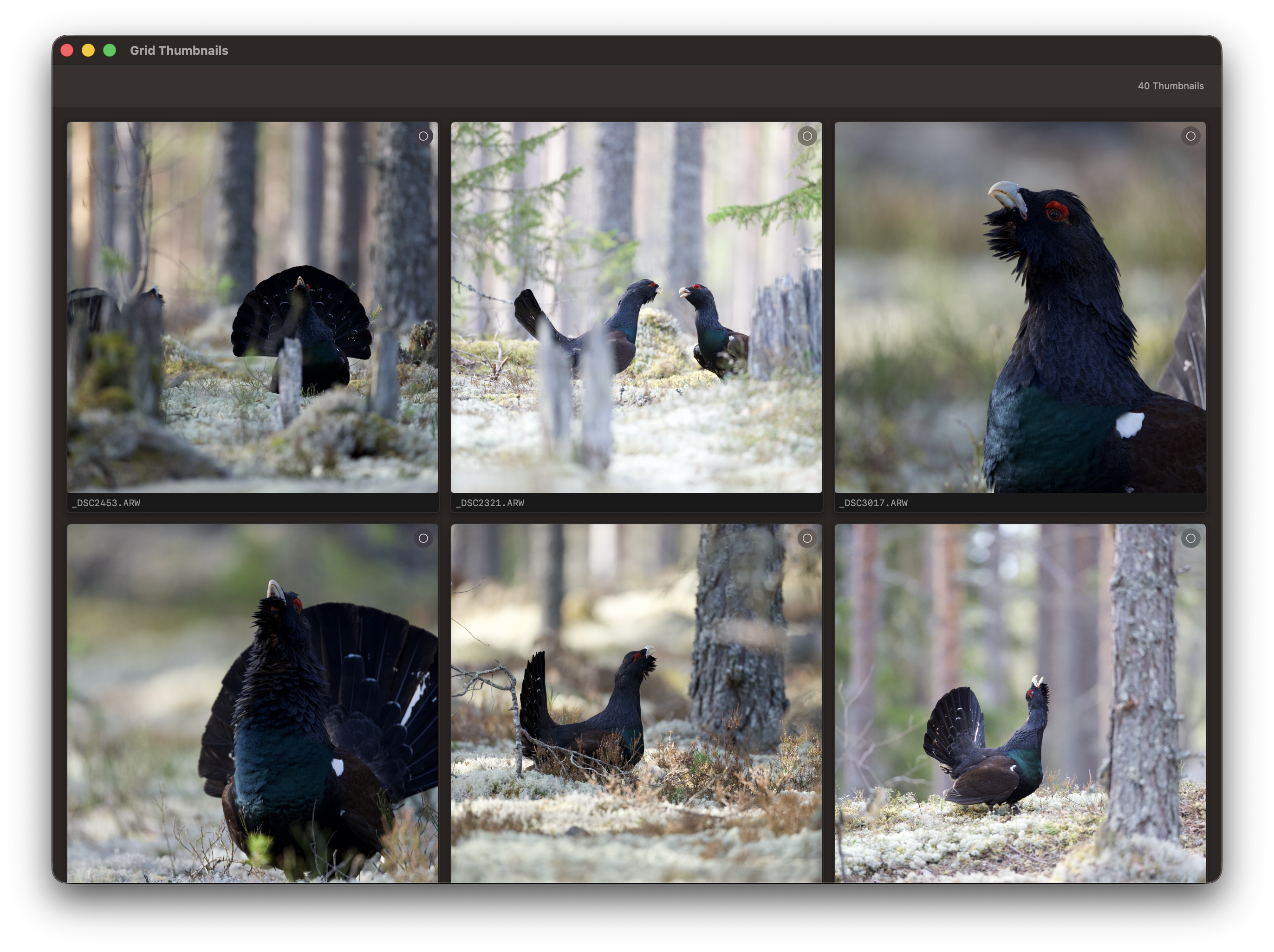
Other views
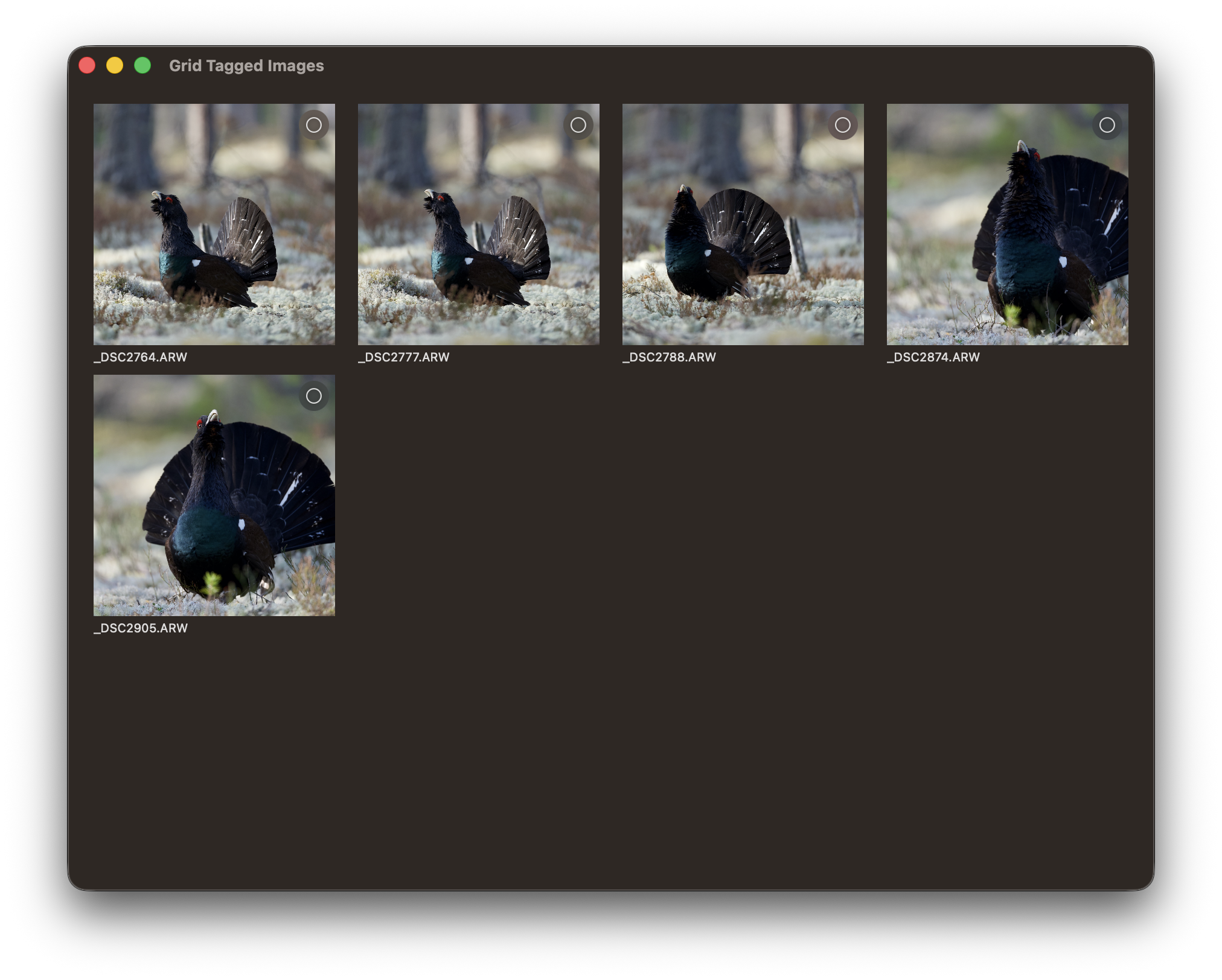
Show only tagged images.
Show images horizontally with only tagged images selected.
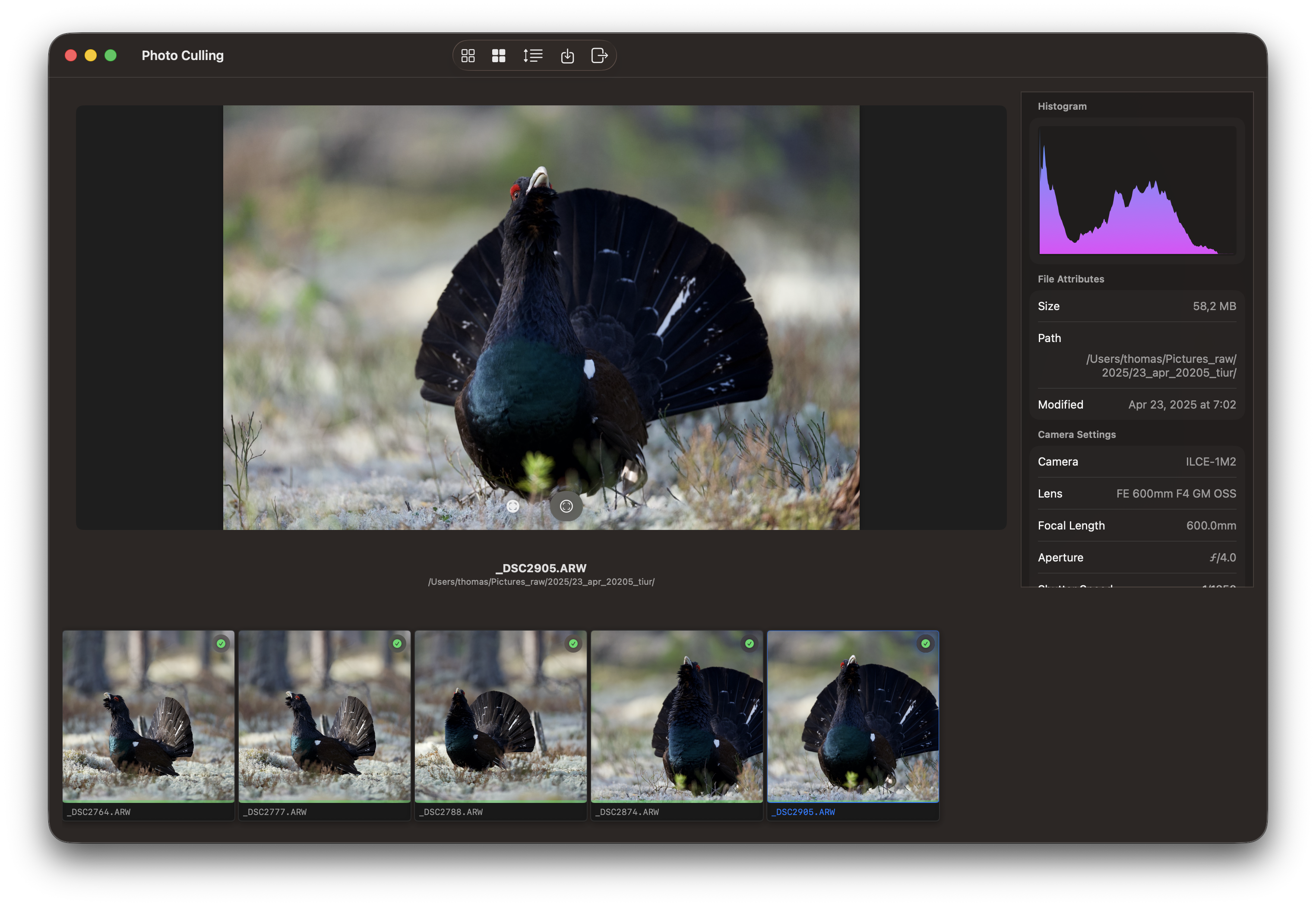
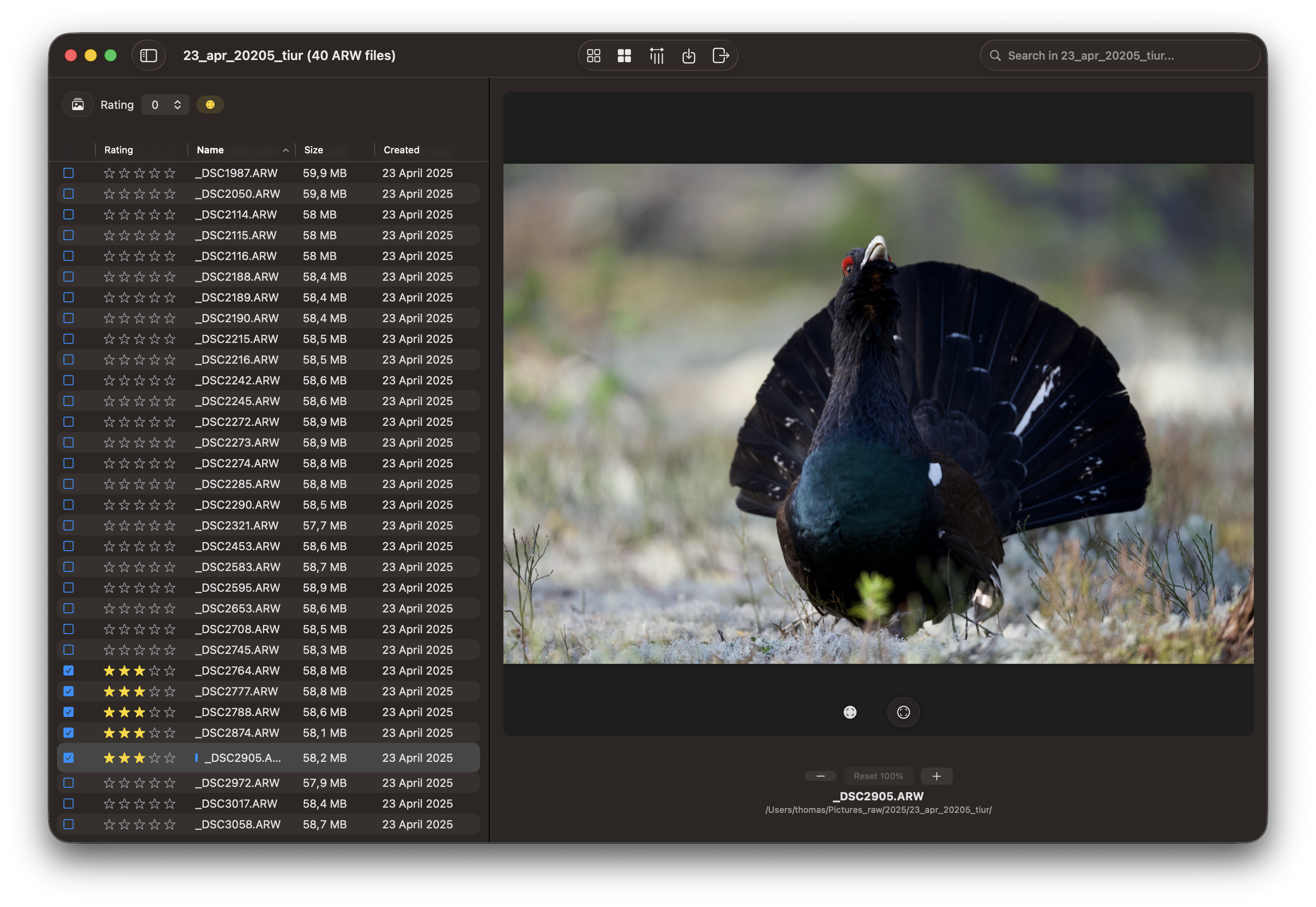
Table view.
Zoom and Focus Peek
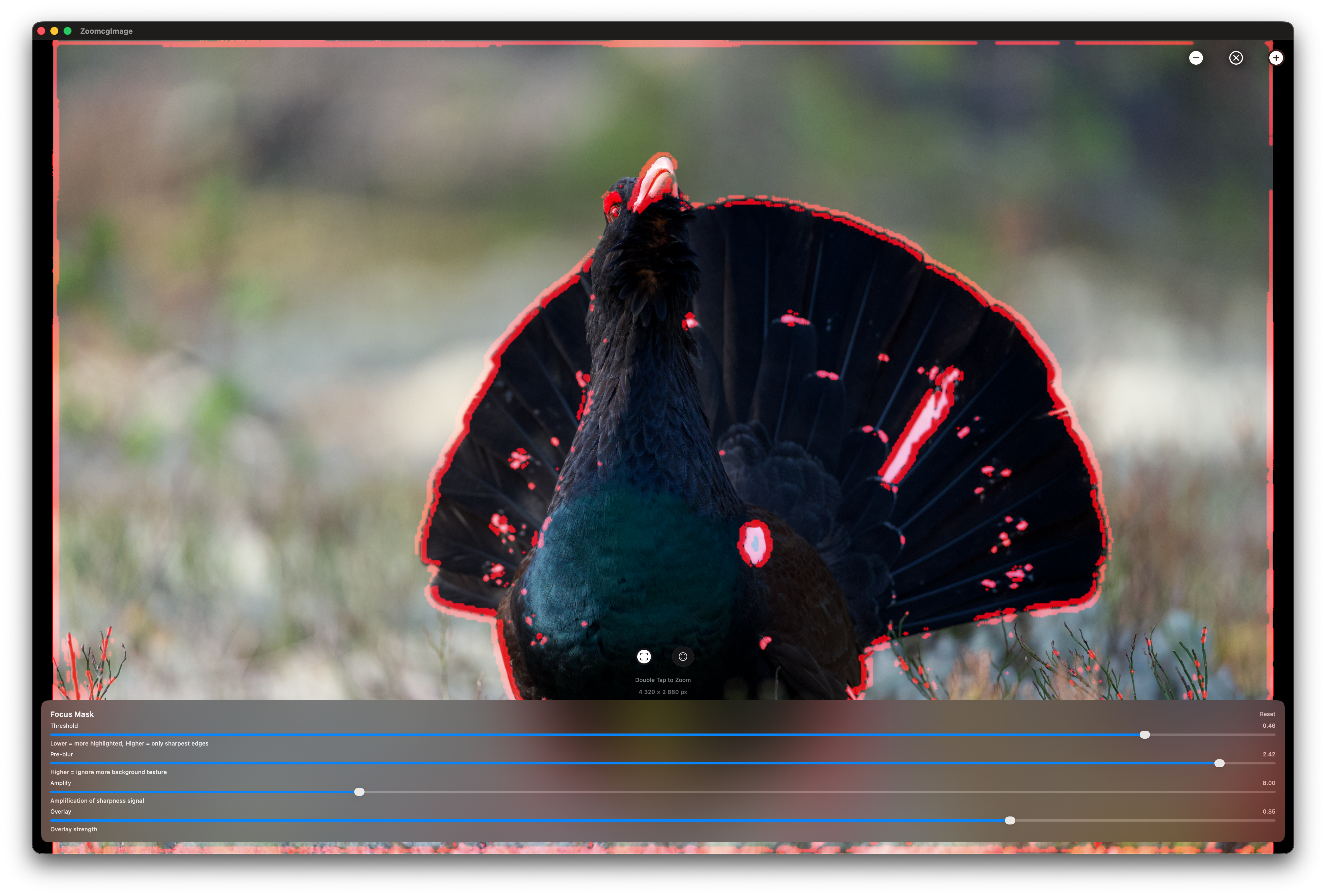
To obtain the most optimal results in Focus Peek view (extract), it is recommended to extract the JPG file from the ARW file. While it is possible to view Focus Peek by creating thumbnails, the mask is more effective when applied to JPGs. To access Focus Peek, double-click on the file table row. In the Settings menu, Thumbnails tab, disable the “Use Thumbnail for Zoom” to use JPGs as base for Focus Peek.
Step 3: Review and Mark Images
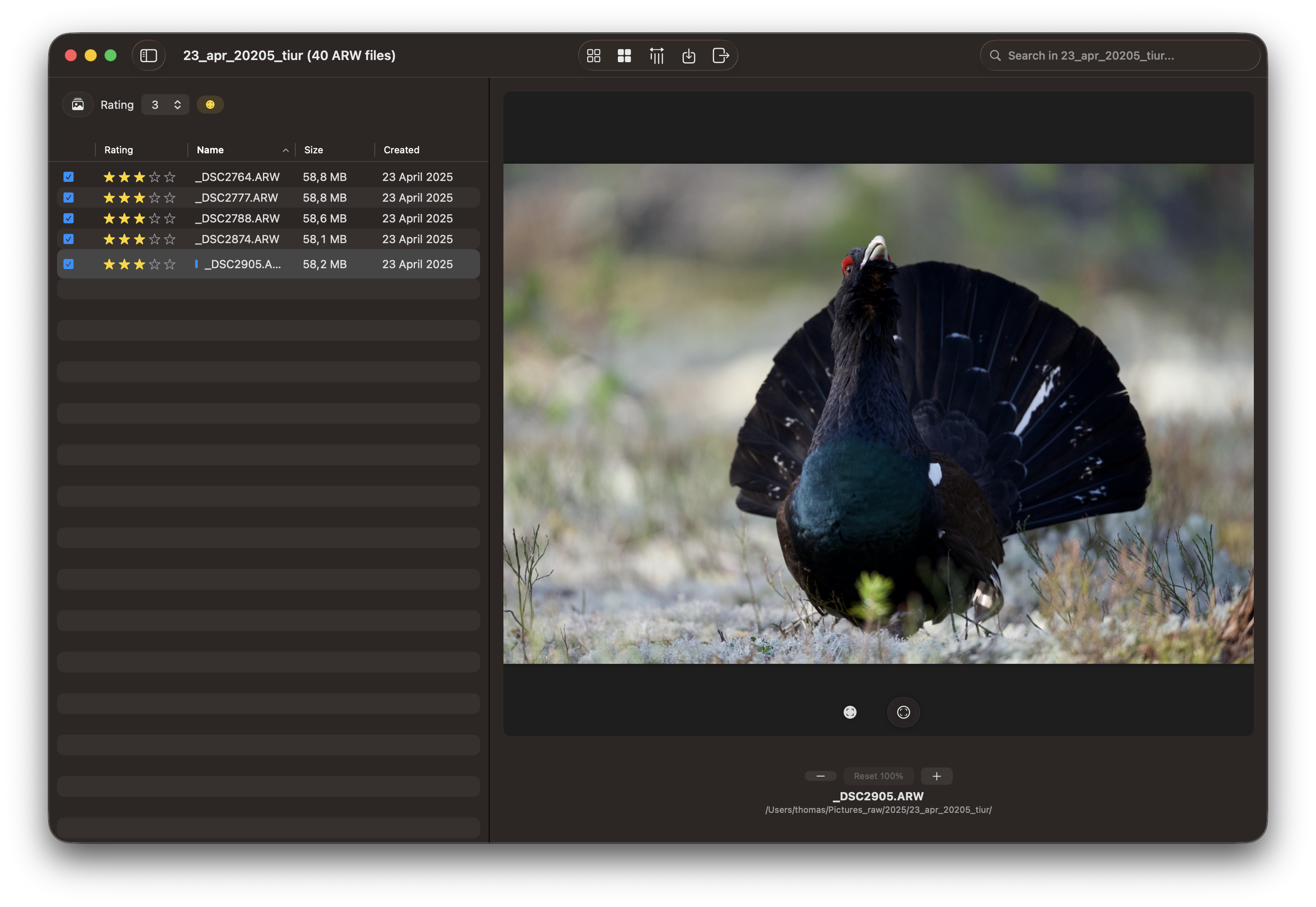
Examine each photo carefully. You can view images at normal size first to get a quick sense of quality. Selected photos will appear at the bottom.
Persistent Marking and Session Recovery
RawCull automatically saves your marking decisions as you work, allowing you to pause and resume your culling session at any time. Your marks, ratings, and review status are saved to disk, so if you need to continue later, simply reopen the same folder and your progress will be restored.
Thumbnail Performance
Thumbnails are generated and kept in memory during your session for fast navigation. RawCull also maintains a disk cache of thumbnails for previously reviewed catalogs, enabling instant loading when you return to the same folder in the future.
Marking and Rating Photos
For each image, decide whether it’s worth keeping:
- Mark as Keep: Select high-quality photos that you want to retain for editing
- Leave Unmarked: Photos you don’t want to include in your final catalog
- Rate Quality: Assign star ratings or priority levels to marked photos based on editing priority
- Review Later: Mark questionable photos for later review
Keyboard Shortcuts
Use these keyboard shortcuts for efficient culling:
| Action | Shortcut |
|---|---|
| Mark as Keep | T or By rating |
| Unmark | T if selected |
| Move to Next | ↓ |
| Move to Previous | ↑ |
| Extract a 2048 px thumbnail or 4320x2880 px JPG | double click on photo |
| Extract Thumbnail or JPG toggle in Settings |
Upon selection of Thumbnail, RawCull presents the pre-created Thumbnail stored in memory or retrieves it from the disk cache if not found in memory. If JPG is selected, RawCull extracts the JPG file from the ARW file.
Step 4: Inspect Details
For critical decisions, zoom in to examine fine details like focus, expressions, or technical quality.
Zoomed view allows you to:
- Check if eyes are sharp and in focus
- Verify composition details
- Look for artifacts or blemishes
- Confirm technical quality before keeping
This is especially useful when deciding between very similar shots from burst mode.
Step 5: Review Your Selections
After marking and rating all photos, take time to review your decisions:
- Filter by Status: View only photos marked as “Keep” or “Review Later”
- Verify Ratings: Review the star ratings and priority levels you assigned
- Double-Check: Re-examine borderline cases
- Adjust Marks: Update any incorrectly marked or rated photos
Step 6: Copy Marked Photos to Final Catalog
Once satisfied with your selections:
- Copy Marked Photos: RawCull copies only the marked and rated photos to your final catalog
- Organize for Editing: The final catalog is now ready to import into your photo editing application
- Keep Original: Your original temporary catalog remains untouched, preserving all images from your shoot
Note: Only marked and rated photos are copied to the final catalog. Unmarked photos remain in the temporary catalog but are not copied to your editing workflow.
Feedback
Was this page helpful?
Glad to hear it! Please tell us how we can improve.
Sorry to hear that. Please tell us how we can improve.